

OpenEmail is in early access, so talk to us to install it.
news.yourstore.com by default, signed by PostShiba. You visit your DNS host twice during setup, and your agent hands you every record. Never guess a record from the domain name.
1
Point your hostname at Render
- Your agent opens your DNS host’s page for your domain and shows the CNAME for
email. Its target is your own web service’s address on Render; copy it from your agent, don’t guess it. - Set the record to DNS only. On Cloudflare, turn the proxy off.
- If your domain has no DMARC record, add the TXT record at
_dmarctoo. If it has a valid one, keep it. If it has two, or a broken one, fix that first. - Your agent checks for the record about once a minute and tells you when it’s in.
Checkpoint: your agent reports
https://email.yourstore.com answering over HTTPS.2
Add PostShiba's records
- Once your agent is connected, it sets up the sender for
news.yourstore.com. To send from a different domain you control, tell it which. - It shows the DKIM and return-path records with their type, host and value. They also appear in the Setup guide on Home, with Copy host and Copy value.
- Add each record at your DNS host exactly as shown.
Checkpoint: every record is added, and your agent has refreshed their status.
3
Pass the domain check
- Your agent runs the full check. It has three parts:
- PostShiba’s state: your domain may send, its DNS records are verified, your team is in good standing, and the key came from a Team Administrator.
- A check message: OpenEmail sends one message to a PostShiba inbox and reads it back. SPF, DKIM and DMARC must pass and line up, and DMARC needs an explicit policy.
- Your address:
email.yourstore.commust answer over HTTPS, because your unsubscribe and tracked links lead there.
- Each problem names the record or setting, the value expected, and who fixes it: you at your DNS host, you in PostShiba, you in Shopify settings, or your agent.
- In PostShiba’s firewall settings, turn off the free mailbox and plus address checks. Your agent can’t change those for you.
- Open Settings > Sending domain to see the same findings, copy each expected value, and click Check again. DNS can take a while to spread; give it time rather than checking over and over.
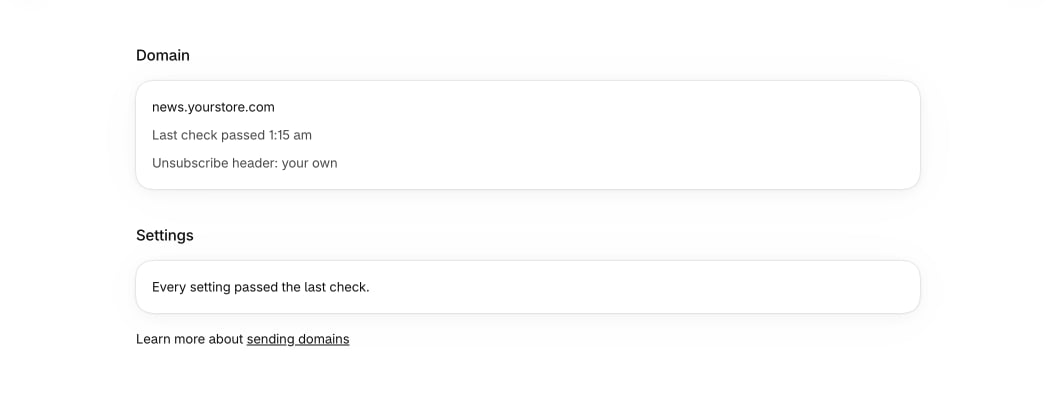
Checkpoint: Settings > Sending domain shows “Every setting passed the last check.” Warnings don’t block sending; read them anyway.
4
Get PostShiba's approval
- Until PostShiba approves your team, it delivers only to your PostShiba team members’ addresses and live inbox addresses. Mail to anyone else comes back as not approved yet. That’s PostShiba’s restriction, not a broken email.
- Adding someone as an OpenEmail test address doesn’t get mail past it.
- Finish PostShiba’s approval steps in its dashboard. There’s no promised wait time. PostShiba’s approval and an approval in your Shopify admin are separate things.
Checkpoint: Settings > Sending limits shows your sender account as Approved.
Warm up your domain
A new sending domain has no history with inbox providers. Start small and grow.- PostShiba keeps its own sending addresses warm. Your domain’s reputation builds from how people respond to your mail.
- Send your first campaigns to your most engaged contacts: recent buyers, and people who opened or clicked lately.
- Use the campaign’s recipient limit to cap each send, and raise it while bounces and complaints stay low. OpenEmail pauses a campaign whose bounces or complaints spike.
- OpenEmail sets no sending cap of its own. When a campaign is more than twice the most your sender handled in one day over the past 30 days, its approval page warns you. You can still approve it.
- Your agent follows the same plan unless you tell it otherwise.
If the check fails later
OpenEmail checks your domain every day, after the domain changes, and whenever you click Check again.- Before the first passing check, nothing sends.
- After that, one failure doesn’t stop sending. OpenEmail checks again an hour later; if that fails too, sending goes on hold. The hold lifts by itself once a check passes.
- If PostShiba stops your domain or account, sending is paused by PostShiba, not held by the check. PostShiba also emails its team administrators.
- Each new hold or pause sends one notice to the store owner’s email address.