

One-click unsubscribe
- In the inbox. Each email carries the
List-UnsubscribeandList-Unsubscribe-Postheaders, so Gmail, Apple Mail and other mail apps show their own Unsubscribe button. One press there unsubscribes the person, with no page to visit. - In the email. Every email has a visible unsubscribe link and your store’s address. If an email your agent wrote leaves either out, OpenEmail adds it at the bottom.
- The page. The link opens a page on your own hostname with your store’s name and an Unsubscribe button. Opening the page changes nothing; the button does it. That way a mail filter that follows links can’t unsubscribe anyone. A test email’s link shows Test unsubscribe instead, which changes nobody’s preferences.
The do-not-email list
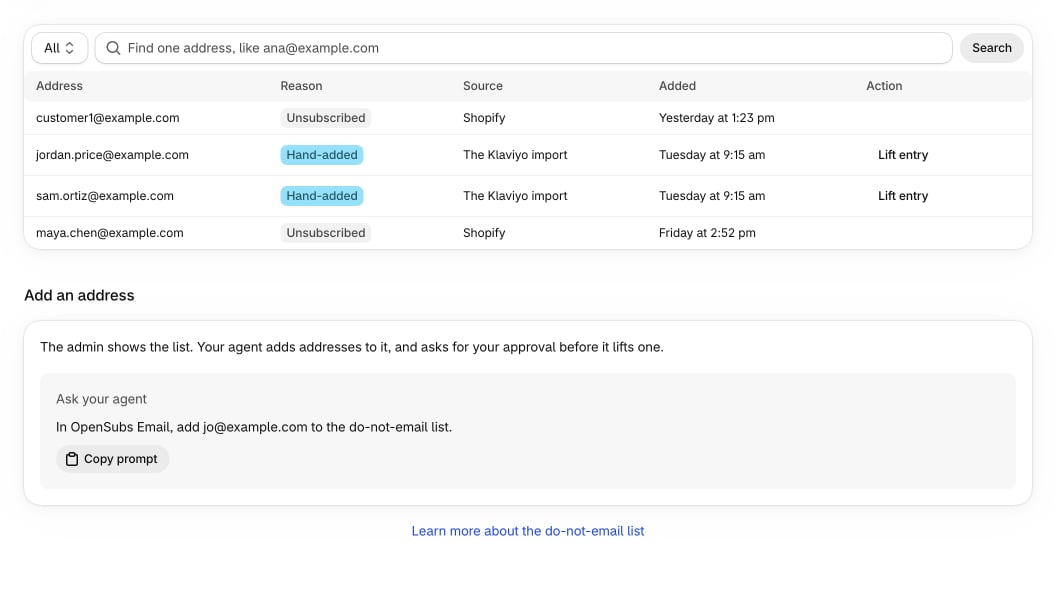
The do-not-email list holds every address that must never get marketing email. OpenEmail checks it, along with the contact’s consent, each time it hands an email to your sender: campaigns, flows and test emails alike. A contact can be subscribed and still be blocked by an entry, after a bounce for example. Each entry has a reason and a source, the place OpenEmail learned it from, such as an unsubscribe link, PostShiba, a Klaviyo import or your agent:
An entry belongs to the address, not to a contact, so it outlives any contact.
To see the list, open Contacts > Do-not-email list. Each row shows the address, reason, source and when it was added. Use View to filter by reason and Search by email address to find one address. The screen doesn’t add addresses; your agent does that.
How addresses match
- Capitals don’t count.
Ana@Example.comandana@example.comare one address. - Plus tags don’t escape. An entry blocks the address with any plus tag: an entry for
ana+news@example.comalso blocksana@example.comandana+shop@example.com. Searching for any of them finds the entries that block it. - Dots count.
ana.lee@example.comandanalee@example.comare different addresses. - International domains match. A domain written in its own letters and the same domain in its ASCII form are one address.
- Erased people stay blocked. When a customer’s data is erased, OpenEmail removes their address from their entries and keeps a one-way code of it. The list shows these as Erased address, and searching for the address still finds them.
Stop emailing someone
Your agent can unsubscribe contacts, or add addresses to the list by hand, with no approval, because it only means less email:Lift a hand-added entry
Only entries Added by hand can be lifted, one at a time:- In the admin: on Contacts > Do-not-email list, find the entry, choose Lift entry and confirm. Doing it there is your approval, checked with Shopify and recorded with your staff account. The message that follows offers View approval.
- Through your agent: it calls
lift_do_not_email_entrywith the entry or its exact address, and sends you an approval link to open in the Shopify admin.
Tracking consent
OpenEmail records opens with a tracking pixel and clicks through tracked links, both on your own hostname. Turn either off on Settings > Email settings with Track opens and Track clicks. Each contact also has a tracking consent: agreed, unknown or declined. Only declined stops the recording. A contact who declined gets no pixel, and their clicks still reach the link but aren’t recorded. The contact’s page shows it as a badge.- Tracking consent never changes whether someone gets email.
- Your agent records it with
set_tracking_consent, giving the state and the date the person gave it, for chosen contacts or a whole list. A list runs in the background as a job. - Profiles that declined open or click tracking in Klaviyo arrive from a migration with tracking declined.
Contacts and lists
Where contacts come from, and how consent shows on each one.
Approvals
How lifting an entry, and every other approval, works.