

Where contacts come from
- Shopify customers. After install, the first pull brings in every Shopify customer with an email address, with their email consent. OpenEmail then stays in step with Shopify on its own, by webhook and a regular check for anything a webhook missed.
- Checkouts. A guest who gives an email at checkout becomes a contact. They’re subscribed only if they ticked the marketing box.
- A Klaviyo import. Your profiles, consent and lists, brought over in one approved migration. See Move from Klaviyo.
- Hand subscribes. People who agreed to your email outside Shopify, such as on a paper form at a market stall. You enter them yourself (step 3 below).
ana+shop@example.com and ana@example.com are two contacts.
What consent means
Each contact has an email consent, shown as the counts at the top of Contacts:- Subscribed: they agreed to receive marketing email. Only subscribed contacts get campaigns and flows.
- Not subscribed: no agreement is in place. They may never have said yes, or not confirmed yet.
- Unsubscribed: they asked not to get marketing email. An unsubscribe here is written back to their Shopify customer.
Your agent can’t subscribe anyone. A contact becomes subscribed only through Shopify, a ticked box at checkout, an approved Klaviyo migration, or a hand subscribe a staff member approves.
1
Find a contact
- Open Contacts. The table lists contacts by when they last engaged (their last order, opt-in or real click), most recent first.
- Search for a name or one full email address. An address also finds the same address with any plus tag. Use the Email consent filter to see one group.
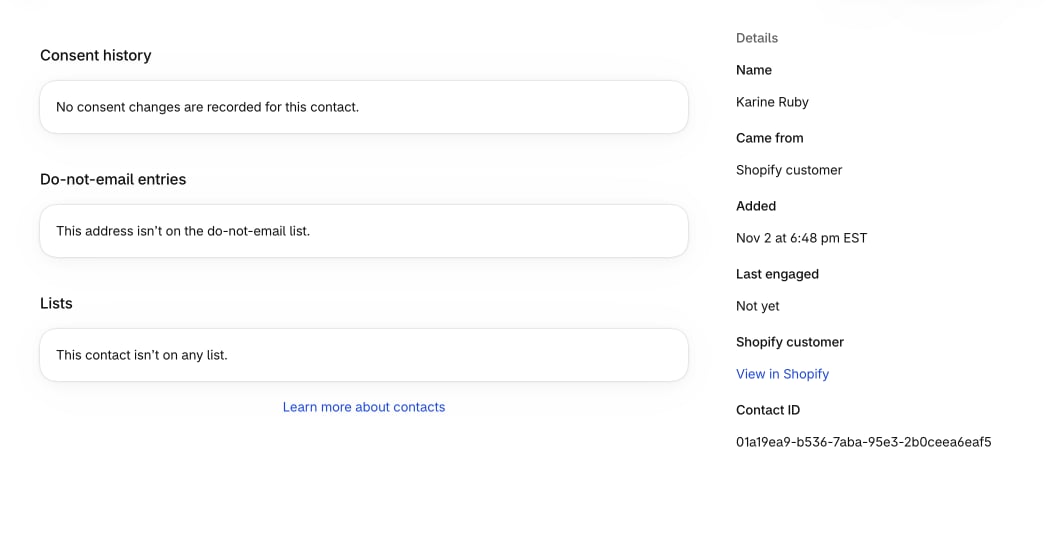
- Select a contact to open their page: Consent history (who changed what, and when), Do-not-email entries, Lists, and Details, with where they came from and a link to their Shopify customer.
Ask your agent
Checkpoint: the contact’s badges show the consent you expected.
2
Make a list
- A list is a fixed set of contacts a campaign goes to. All contacts is every contact and always comes first. Every other list is one your agent made or the Klaviyo import brought over.
- Open the Lists tab on Contacts to see each list’s Members and how many are Subscribed. Select a list to see its members.
- Your agent creates, renames and deletes lists, and adds or removes contacts. A list a campaign uses can’t be deleted.
Ask your agent
Checkpoint: the list shows under Lists with the member count you expected.
Lists don’t update themselves. There are no rule-based segments: a list changes only when your agent edits it. Klaviyo segments arrive as fixed lists, named after the segment with “from Klaviyo” and the date of the read.
3
Add people who agreed in person
- On Contacts, choose Hand subscribe.
- Fill in the Statement (how and where they agreed, up to 2,000 characters, with no email addresses), Date they agreed and Time they agreed (in your store’s time zone, never in the future), and Email addresses (up to 100).
- Subscribe addresses opens a review of exactly what will happen. Confirming it is your approval, recorded with your staff account.
- An address with a hard bounce or a complaint stays blocked; a hand subscribe never lifts it. Nothing is written back to Shopify, and no address can be added afterwards: make another hand subscribe instead.
Ask your agent
Checkpoint: each address shows as subscribed, and its consent history shows your statement.
4
Export
- Everyone or one list: ask your agent for a CSV. It returns a file link when the export finishes; open it in the Shopify admin. The CSV holds contact IDs, email addresses, names, email consent, tracking consent and Shopify customer IDs.
- One person: on their contact page, choose Export for a JSON file of everything OpenEmail holds on them. Your agent can do the same, by contact or by address.
- File links expire 24 hours after the file is made.
Ask your agent
Checkpoint: the file page shows the file as ready, and Download saves it.